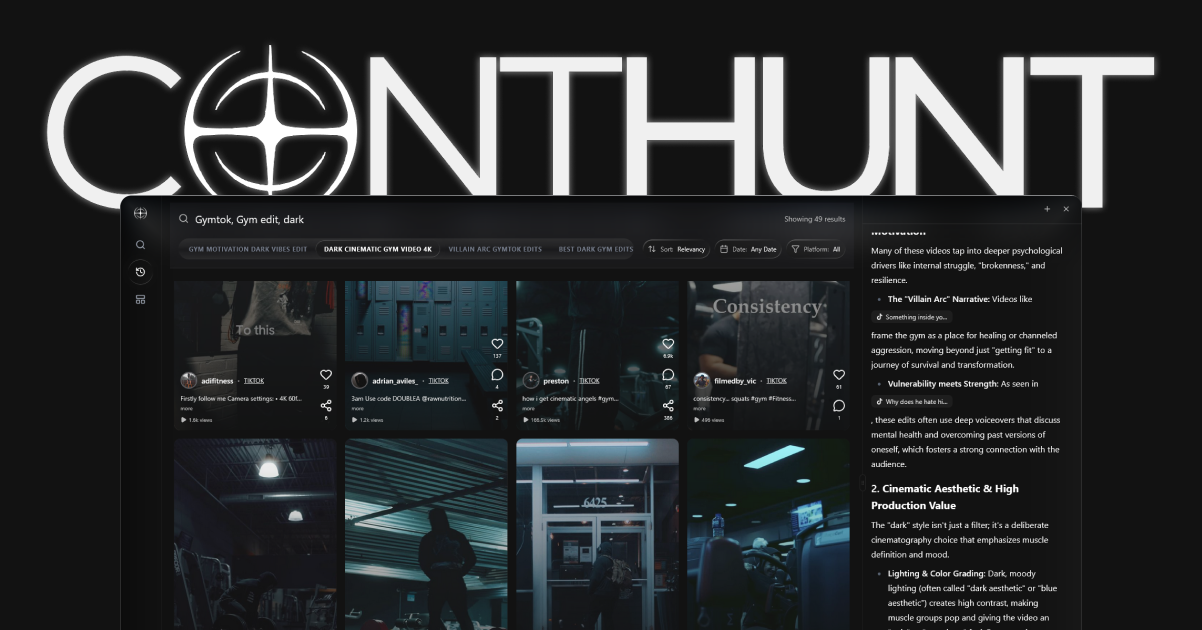
In the hyper-competitive landscape of 2026, manual tracking is dead. To grow on Instagram today, you need a “Digital Twin” of your audience—a data model that tells you exactly when to post and what to shout.
Here are the top tools that provide that intelligence.
| Tool | Best for | Native Insights overlap | Starting price |
|---|---|---|---|
| Instagram Insights | First-party account stats | Full | Free |
| ContHunt | Public Reels and competitor examples | None (research layer) | Paid |
| Metricool | Scheduling plus IG reporting | Partial | Paid |
| Sprout Social | Team reporting | Partial | Paid |
| Iconosquare | Historical IG charts | Partial | Paid |
| Hootsuite | Publishing plus listening | Partial | Paid |
| Socialinsider | Competitor IG benchmarks | Partial | Paid |
| Later | Visual planner plus basics | Partial | Paid |
| Flick | Hashtag and caption research | None | Paid |
| YouTube / TikTok counterparts | Cross-platform, not IG-native | None | Varies |
1. ContHunt (The 2026 Standard)
ContHunt has pivoted from a content discovery engine to a full-stack Social Intelligence Platform.
- Unique Feature: “The Mirror” — a competitor benchmarking tool that shows you exactly which frames in your rivals’ Reels are causing viewers to save the video.
- Best For: Professional creators and high-growth agencies.
2. Metricool
Metricool remains a dominant force for multi-platform management.
- What’s New: In 2026, Metricool introduced “Budget-Sync,” allowing you to see the direct correlation between your organic reach and your paid ad performance on a single dashboard.
3. Hootsuite Horizon
Hootsuite’s 2026 interface, “Horizon,” is built almost entirely on natural language processing.
- Highlight: You can literally ask the dashboard, “Why did my Reel last Tuesday fail?” and it will provide a bulleted list of technical reasons.
4. Sprout Social
Sprout is the choice for enterprise-level sentiment analysis.
- Advanced Feature: “Emotional Mapping” — it categorizes audience comments into over 50 distinct emotional states to help brands manage their reputation.
5. Later Influence
Later has successfully integrated influencer discovery with analytics.
- Unique Slot: It now provides “Impact Probability” scores for potential collaborations based on audience overlap data.
What to Look for in 2026
When choosing a tool this year, prioritize these three features:
- Viral Probability Scoring: Does the tool predict performance?
- API Refresh Rates: Does the data update in real-time or every 24 hours?
- Cross-Platform Parity: Does it show how your IG audience behaves differently from your TikTok audience?
Native vs Third-Party Instagram Analytics Tools
If you came here from the old instagram-analytics-tools page, the practical answer is simple.
- Use Instagram Insights when you only need your own account data and a quick read on reach, saves, and watch time.
- Use ContHunt when you need competitor benchmarking, cross-account comparison, or content pattern tracking.
- Use Metricool, Sprout Social, or Hootsuite when analytics need to live inside a reporting or scheduling workflow.
- Use a mix of native and third-party tools if you want both platform truth and market context.
Best Instagram Analytics App vs Tool
“Instagram analytics app” and “Instagram analytics tools” are usually the same intent with a device preference. Pick based on workflow:
| Need | Best fit |
|---|---|
| Quick own-account checks | Instagram Insights app |
| Reels performance review | ContHunt or a Reels-focused analytics tool |
| Client reporting | Metricool, Sprout Social, or Hootsuite |
| Competitor benchmarking | ContHunt or Socialinsider |
For Reels-specific measurement, read Instagram Reels Analytics. For broader reporting stacks, compare Social Media Analytics Tools.
Conclusion
The best Instagram analytics tools in 2026 don’t just count likes; they measure Intent. Whether you choose the deep behavioral insights of ContHunt or the enterprise scaling of Sprout Social, ensure your choice aligns with your 2026 growth goals.
How should you apply Best Instagram Analytics Tools Compared without copying one viral post?
Start with a small sample of public posts in the same niche and format, then compare them side by side. ContHunt is useful here because it keeps the original source available, so you can inspect the first seconds, overlays, comments, and publishing context instead of ranking ideas by total views alone. Capture the promise, the proof, and the next step the creator asks for. After you draft your version, change only one variable at a time: hook, length, caption, or thumbnail. That is the founder-led research loop we use internally at Synthenova Enterprises LLP: evidence first, then a test you can actually measure.
What should you write down while reviewing examples?
-
- ContHunt (The 2026 Standard)
-
- Metricool
-
- Hootsuite Horizon
-
- Sprout Social
-
- Later Influence
- What to Look for in 2026
- Original URL and publish date
- Audience and offer, if one is stated
- What you will test next on your own account
Which ContHunt workflow matches this page?
- Search public short-form videos for the same viewer problem.
- Open several examples and keep the source links.
- Compare hooks, pacing, text, and comments.
- Turn repeating patterns into a brief, not a clone.
- Validate with your own retention and reply data.
Which official docs should you verify against?
How do you keep the brief honest?
Write the date you collected examples and the number of posts you actually opened. If you only watched two videos, do not describe a trend. Note what you could not see: private analytics, paid spend, and anything behind a login. ContHunt does not replace YouTube Analytics, Instagram Insights, or TikTok Analytics on your own account. It helps you inspect public creative with the source still attached. When you publish, keep a short log: hook used, length, caption, and the result after a comparable window. That log is more useful than copying a competitor’s posting time.
If the page you are briefing is about Best Instagram Analytics Tools Compared, ask whether the viewer already knows the punchline. If they do, the first seconds have to show a new proof, a tighter demo, or a clearer next step. If they do not, the first seconds have to name the problem in plain language. Either way, the caption should match the video so a muted viewer and a later reader get the same promise. That is the standard we use in editorial review at ContHunt, and it is the standard we recommend to agencies handing briefs between researchers and editors.
What questions should you answer before you shoot?
Does this idea match the audience you can actually reach? Can you film the proof you described? Is there a next step that is honest? If the answer is no, pick a smaller version of the idea. Then review two more public examples and only then schedule production.
Related research
- Multi-Platform Analytics Strategy: The 2026 Omnichannel Guide
- Metricool Pricing and Alternatives: The 2026 Comparison Guide
- Instagram Reels vs. YouTube Shorts Analytics: The 2026 Comparison
- Instagram Reels Strategy for Fitness Creators in 2026
Key data
- Engagement Accuracy
- 99.4% — The precision rate of enterprise-tier analytics tools in identifying bot-driven vs. organic engagement in 2026.
- Decision Velocity
- 3x — Creators using AI-driven analytics tools generate content 3x faster than those relying on manual data interpretation.